Visual weekly schedules
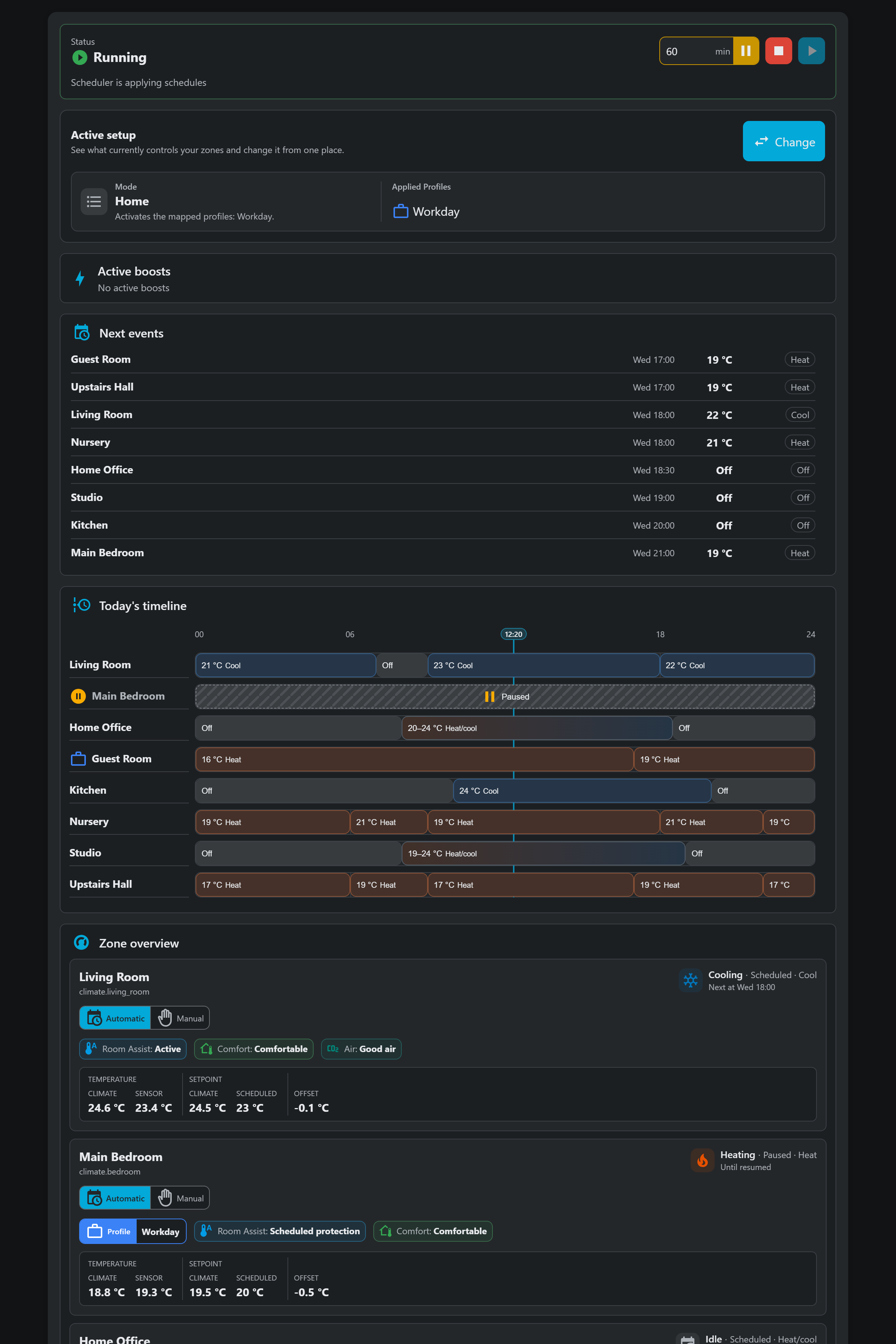
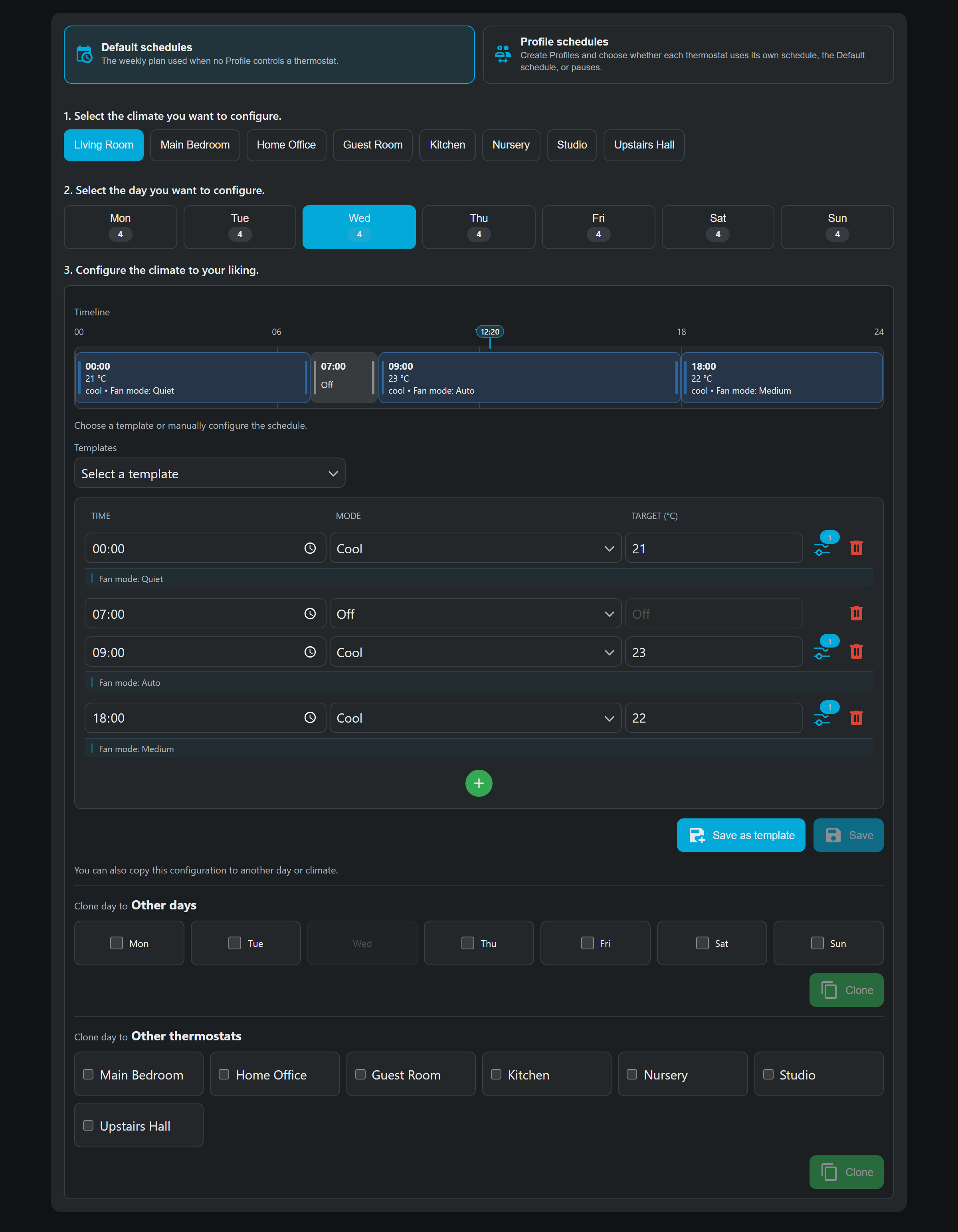
For each period, choose a start time, HVAC mode, temperature or native heat/cool range, and any supported climate options. That block stays active until the next one begins.
Read the scheduling guide
For Home Assistant
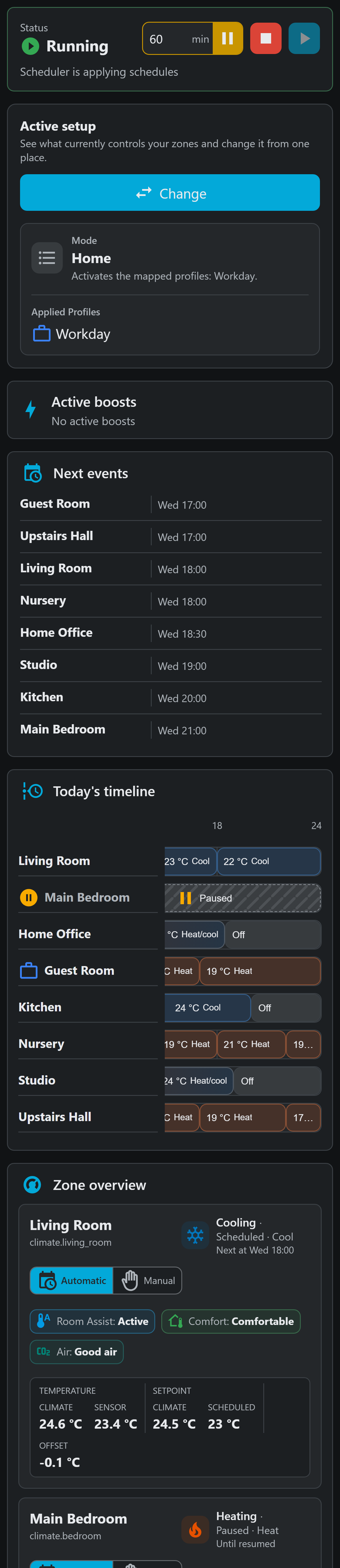
Velair adds weekly scheduling to the climate.* entities already in Home Assistant, with one panel for planning the week and seeing what is active now.
Core workflow
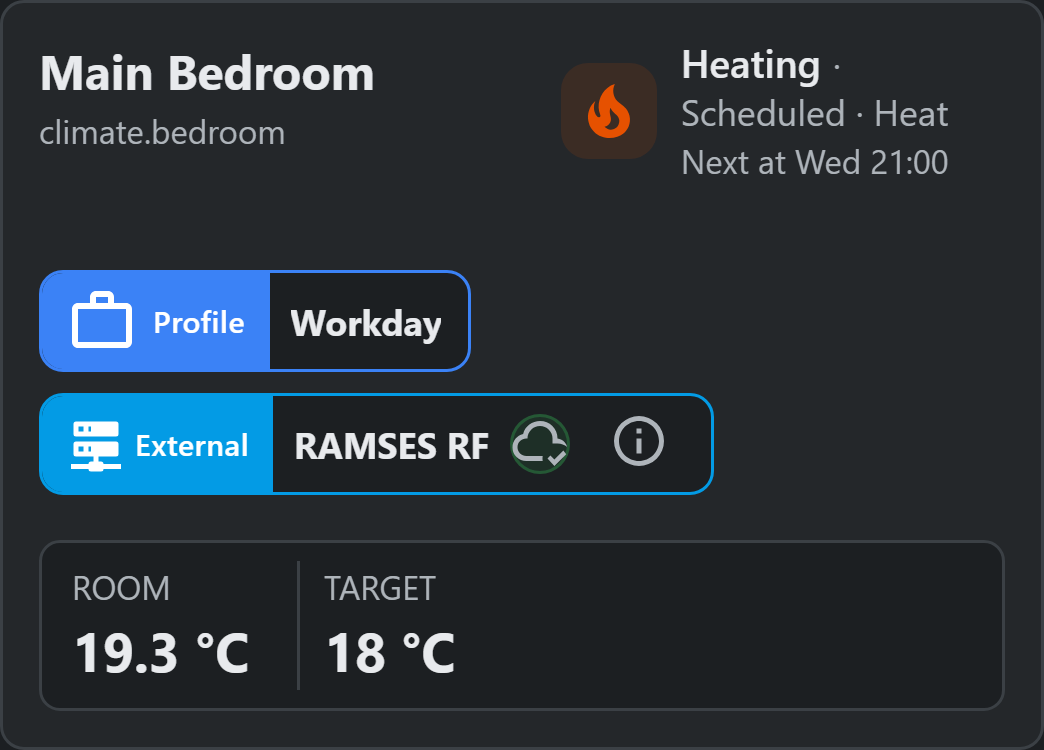
Your weekly schedule stays as the baseline. Profiles, Modes, pauses and Boosts can change what should happen now without making you rebuild it.
For each period, choose a start time, HVAC mode, temperature or native heat/cool range, and any supported climate options. That block stays active until the next one begins.
Read the scheduling guide
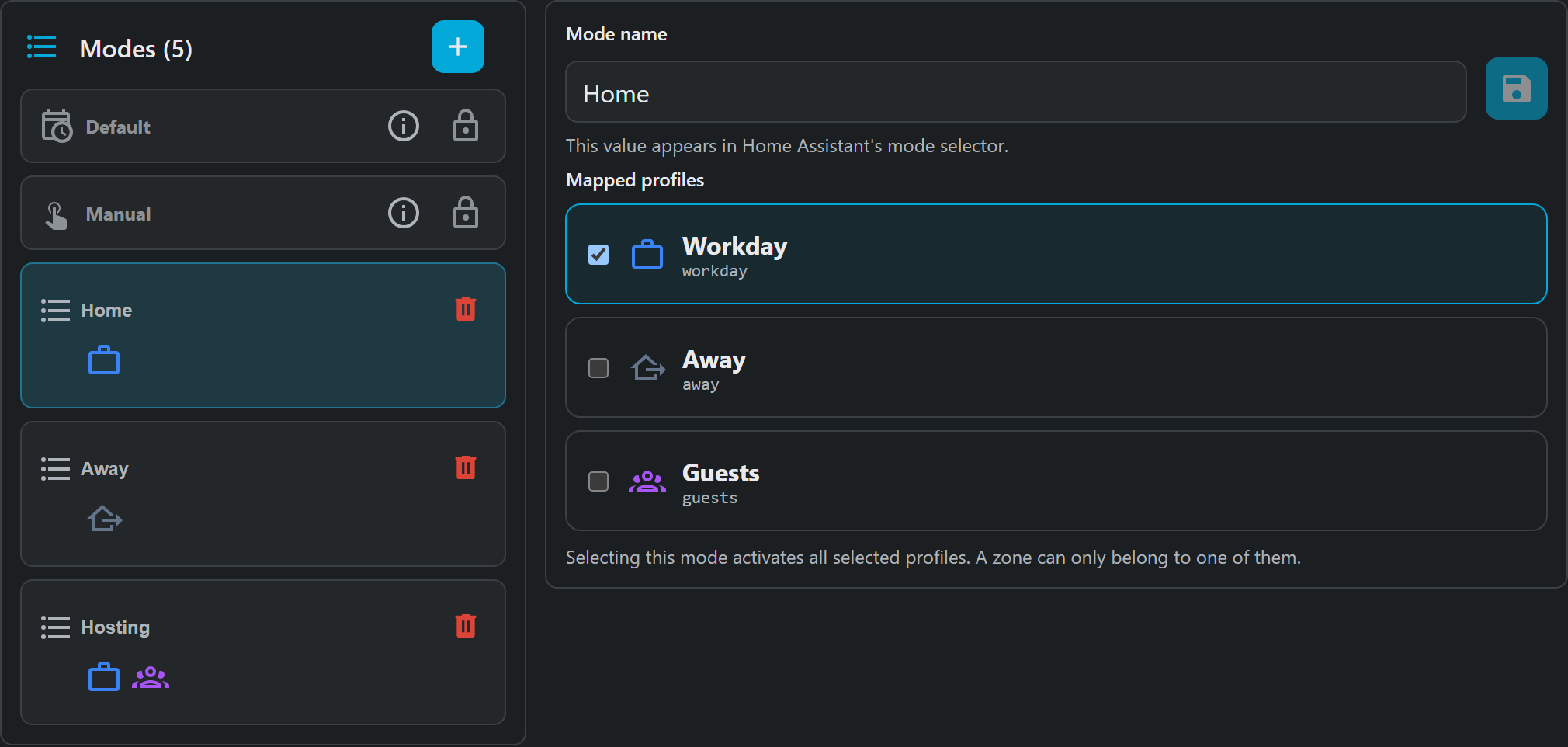
Reuse named schedules such as Workday, Away or Guests, then group them into a Mode that coordinates several zones.
The main experience adapts to desktop, tablet and phone. The optional Lovelace card uses the same backend-owned configuration.
Optional room sensor control
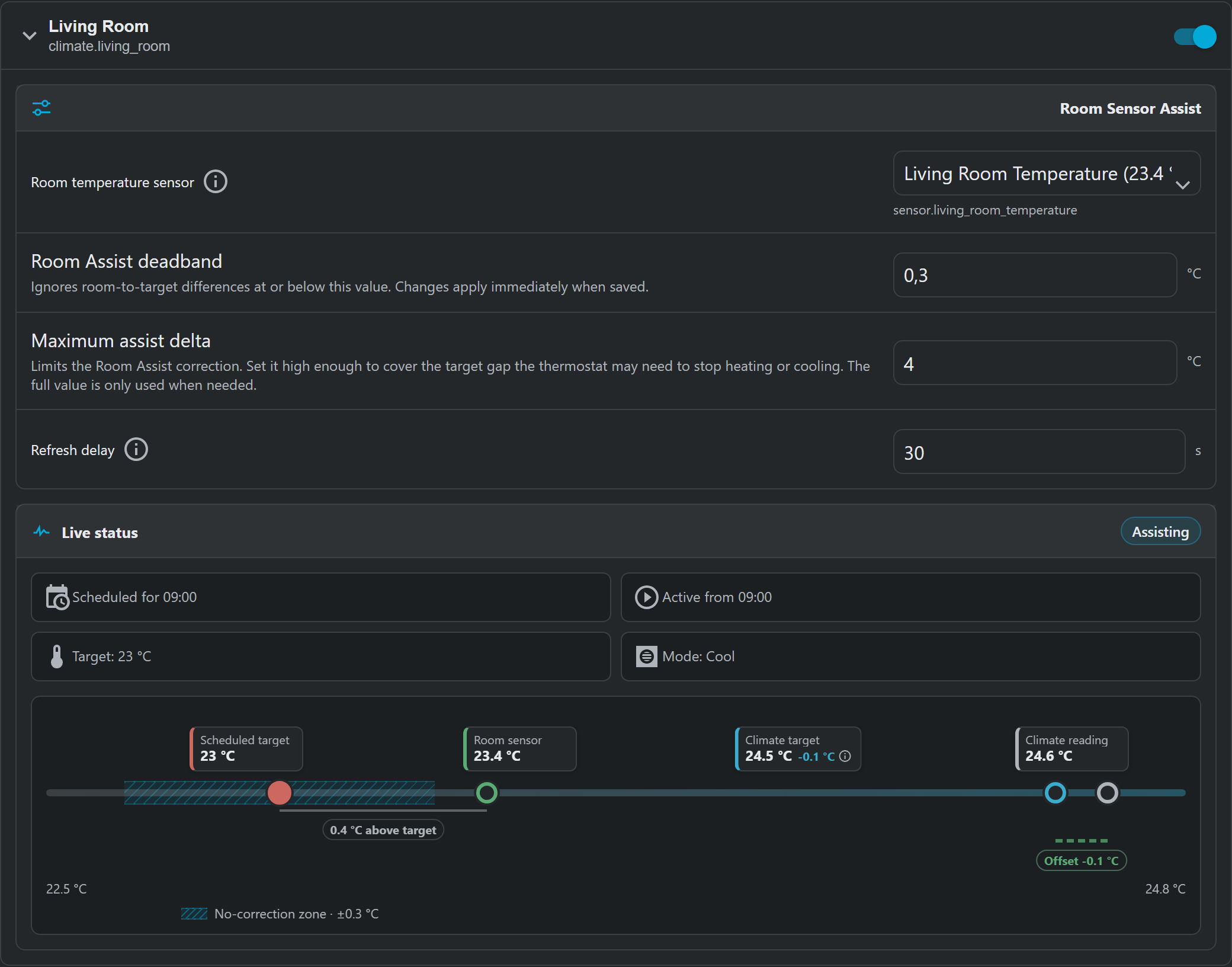
When a wall thermostat does not represent the room well, Room Assist temporarily adjusts its target using a separate temperature sensor. The graph shows the scheduled target, room reading, climate reading, applied target and current state.
Adaptive Preconditioning
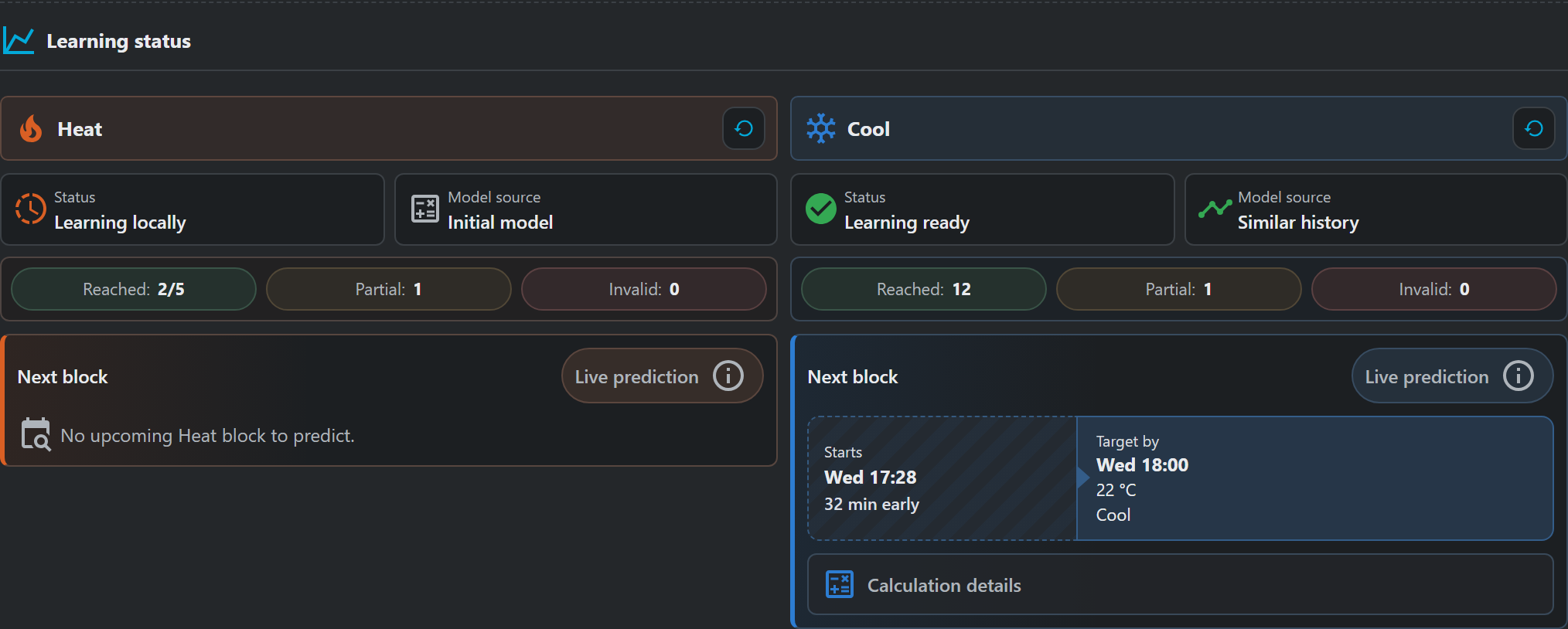
Velair can learn how long a managed zone usually takes to reach a scheduled target. Learning remains local, and the panel shows the planned lead time, learning status and observations behind it.
Adaptive behavior is optional and depends on sufficient observations from the selected room.
Before you install
Velair sends commands through the climate entities already in Home Assistant. The integration behind each entity determines which modes, targets and options it supports.
Schedules and decisions do not require a Velair account or cloud. A device exposed through a vendor cloud still depends on that connection.
Use Profiles, Modes and pause actions from regular Home Assistant automations or the optional blueprints. Velair does not try to replace your presence logic.
Installation
The integration and its sidebar panel are installed together. No separate dashboard card is required.
Find Velair in HACS and install it.
Restart Home Assistant so the custom integration is loaded.
Add Velair, select managed climates and open the sidebar panel.
Community project
If Velair behaves unexpectedly with your climate integration, include a short description, the relevant entity states and logs in the issue.